

Internet
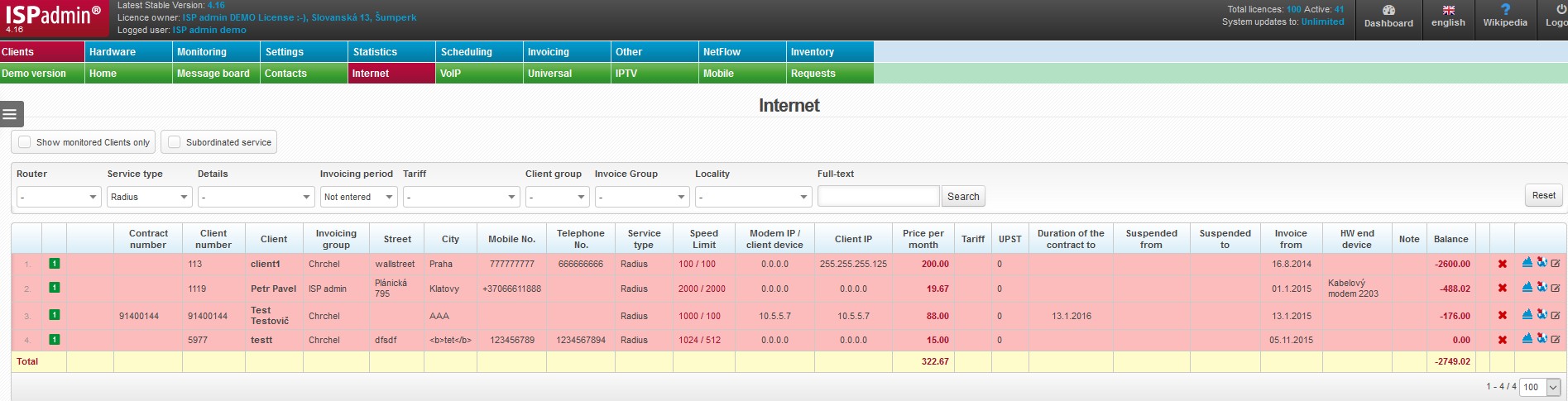
Internet service means connection to the Internet via one of the following technologies: WiFi, LAN, FTTB, ADSL, FTTH
There are the following default types of Internet service in the system: CMTS, WIFI, Radius, PPPoE, L2TP
These types cannot be deleted. You can set other service types in Settings Code lists Clients Service type.
You can define Internet tariffs in Settings Tariffs Internet.
| Show monitored Clients only | System only shows clients whose end device has been marked for monitoring (Active services). |
| Subordinate service | Displays client´s other IP addresses in the list. Just the main IP address of a service is displayed by default. |
FILTER
Client list may be filtered by displayed criteria.
Fulltext search does not work in all fields due to server load. It only works in the important ones (e.g. name, street, city, Postcode code, company, phone number, client number, variable symbols, internal note etc.).
 You may define a minimum number of characters to be entered by an administrator for a search to work. Define the limit for each administrator in Settings Administrators Administrators, parameter Limited clients´ search.
| Reset | Resets the filter to display all entries. |
COLUMNS
 |
Click on this icon to open a menu, in which you can check columns to be displayed (Table settings), columns to be printed (Print settings), and Search settings. Then press Save and
All entries can be sorted by every displayed column. Click on column name to display the list by the requested column. Click once to sort in ascending order, twice for descending order. |
 . Display configuration is saved for each administrator separately.
When you hover over client´s name, a basic window with details of a client account is displayed.
Click on client´s name to display Client card.
Highlighted lines
Suspended services are highlighted in red for better orientation in displayed services.
| Invoicing period | Defined in Active services, the options are: - No invoicing, |
|---|---|
  Subordinate service/NAT Subordinate service/NAT |
Information on subordinate services and NAT networks. Hover over NAT to display IP range of NAT network. |
| Contract number | Client number is used by default. Use this field e.g. in case you use detailed distinction in client´s contracts. |
| Client number | Client´s number is stored in the database. It is a unique identifier which is further used in the system, hence its uniqueness. Client number is further used as variable symbol for invoices, and also as default login to client portal. |
| Client | Client´s first name and surname or company name. We strongly recommend to use Surname First name due to better sorting in case of bigger numbers of clients. |
| Invoice group | Invoicing Settings Invoice group Each client belongs to a certain invoice group which represents provider´s company. If you are one company, one invoice group is sufficient. Some ISP´s compose of more companies, hence more invoice groups for each company. Each invoice group has its own logo and stamp for invoices. Also, all data such as numerical series, invoicing, statistics or clients are kept separately. Each invoice group must have its own numerical series. |
| Street, City, Postcode | Home or installation address. Installation address is displayed by default, if it differs from domicile. Installation address is set for each active service. |
| Mobile | Mobile phone number used for communication with the client. If you use an SMS gateway, SMS will be sent to this number. |
| Telephone | Phone number used for communication with the client. |
| Service type | Type of client connection, e.g. WiFi 5GHz, RADIUS. Set up client type in Settings Code lists Clients Service type |
| Speed | Allocated speed base on service or tariff set-up. Download / Upload speed |
| Modem IP / client device | IP address under which the client is stored in the system, i.e. routerboard wlan interface address (routed network) or wi-fi PCI card address (bridged network). ISPadmin automatically offers the first free IP within address range on a given router. When client´s IP address is filled in, it is then entered into Mikrotik. Failing which IP address from DHCP pool is used by Mikrotik. Framed-IP-Address attribute is created. |
| Queue tree | The system sets up its own queue tree in most cases. This one is a special client´s queue tree. It must be defined in Mikrotik manually and then loaded into the ISPadmin, and tested. QT can be selected only if 1:1 aggregation is used, otherwise the special QT is not displayed. Set up queue trees in Hardware RoutersAll. |
| Client´s MAC | MAC address of client´s wlan interface. The system automatically loads MAC addresses once an hour. If you have activated firewall MAC filter and you connect a new client, you do not need to fill in client´s MAC address. In this case, ISPadmin enables the client in firewall and when the client is connected, it will read his MAC address from ARP table, and stores it. IP address is then linked to MAC address and locked. |
| Modem online | Status of modem availability: |
| Client online | Status of client´s end device: |
| Current download / upload | Current download / upload speed. |
| Download / upload per month | Transmitted data in total per month |
| Price per month | Invoiced price per month base on selected tariff, or individual price. |
| Monthly price incl. VAT | Price per month including VAT |
| Tariff | Set up tariffs in Settings Tariffs. |
| Amplifier / SSID | Click on it to display statistics of a given element |
| UPST | Upstream ID |
| Date added | Date when client was entered to the system. |
| Connected from | Client´s connection date, or date when service was added. |
| Duration of the contract | Date until which the client is obliged to use the service. |
| Suspend from - to | Dates (from-to) of suspending the client. It is defined for Active service. |
| Invoice from | Initial date of invoicing the service/item. Usually it is left unchanged (i.e. current date is used), the first invoice is issued at next invoicing. (Invoicing Invoices). If you move the date forward, the first invoice will be issued following this date.
|
| End device HW | Type of end device installed at client´s. Set it up in Hardware Settings End devices. |
| Note | Note to the service (Active services), please distinguish from client note in Client card. |
| Balance | Actual balance of client´s account. Positive number means an overpayment, and negative one is a debt. |
 Start ping to client Start ping to client |
It runs a PING , through which you can immediately test connection status of client/router. Set PING size in Settings Syst.settings General, ID ping_size. |
| Service suspension |
In case of suspended service, an info page is displayed to a client with reason for suspending. You can set this page up in SettingsInfo Page |
 Show Internet statistics Show Internet statistics |
Client card with Internet statistics is displayed. |
 Show on map Show on map |
Click on |
 Edit Edit |
Service update in Client card. A new window is opened identical to adding new service. |
 Monthly,
  Quarterly,
  Half-yearly,
  Annually
 online,
  offline