
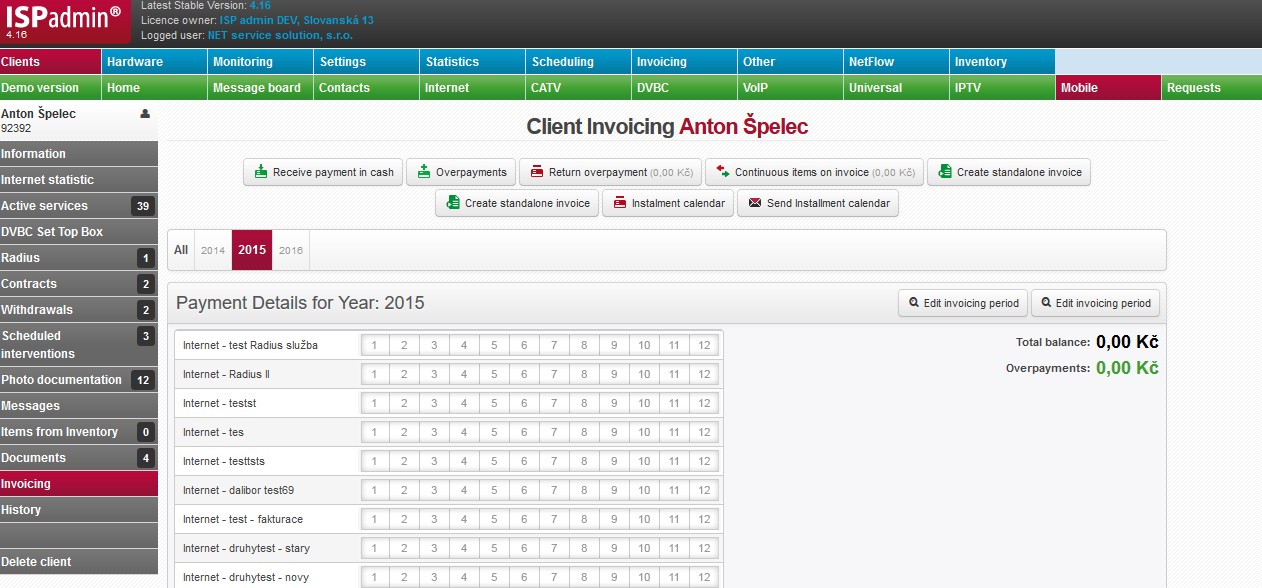
Client’s invoice-related details are displayed here, such as total balance, overview of invoices and payments, and also payment behaviour. Here you can make financial transactions for a selected client, such as issue invoice or receive cash payment.
 Receive payment in cash Receive payment in cash |
Before you accept a cash payment you have to fill in a cash receipt. |
 Overpayments Overpayments |
Overview of client overpayments. Overpayments can be deducted from issued invoices, if ID preplatky is set in Invoicing Settings General |
 Return overpayment Return overpayment |
Current overpayment amount is displayed in the button. Click on it to proceed with returning an overpayment or its part. |
 Pending items on invoice Pending items on invoice |
Records all client’s un-invoiced pending items. Current pending items amount is displayed in the button. |
 Create invoice Create invoice |
Here you can issue a standalone invoice |
| Payment schedule |
It generates an individual instalment calendar for current year. A pdf file is generated and you can print it for a client (e.g. in case of their visit of your shop), or send it via email ( |
 Send Instalment calendar Send Instalment calendar |
Send generated instalment calendar to client’s email. |
| Opening Balance | It displays client’s opening balance invoice (Client card - Information). Overview of all clients’ opening balance amounts is in Invoicing Overviews Opening Balance, their generation in Other Tools. |
| All | It displays all issued invoices, cash receipts, and received payments. |
| Year YYYY | Highlighted years include invoices, cash receipts, or payments. |
| Year YYYY | A year in pale grey does not include any invoices, receipts, or payments. Click on it to “open” it, i.e. open it for creating invoices. A year gets open automatically if you use bulk generation of invoices. |
 Show cancelled invoices and payments Show cancelled invoices and payments |
If there are cancelled invoices or payments, display them using this button along with others. Cancelled invoices and payments are not shown by default for space-saving purposes. |
Payment Details for Year
Client’s services for a selected year are displayed. If you select All or Opening Balance, services are not displayed. Month are highlighted with the following pattern.
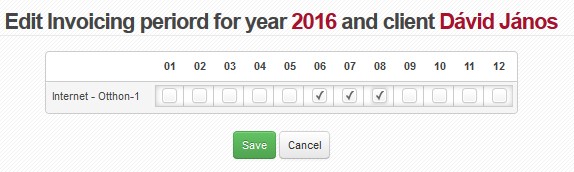
| Edit invoicing period |
Check those un-invoiced months which you wish to exclude from future invoicing. It is a simple and fast way to provide a client with free months’ period without touching setup of a tariff or service. |
| Total balance | Actual balance of client´s account. Positive number means an overpayment, and negative one is a debt. |
| Overpayments | Overpayments total, see list of overpayments. Return overpayment here. |
Client’s Invoices
Overview of all issued invoices for a selected year. You can easily tell which invoice has been settled and which is still unpaid, colours will help you get orientated quickly. Overpayments/Underpayment included into total client’s balance are shown in invoice list.
Invoice statuses are: paid, not paid, proforma, credited (confirmed), and credited (unconfirmed).
 |
It displays a list of client’s invoices with an option to print/save on disc. |
|
Send a list of invoices via email. |
| All | It displays all invoices. |
| Invoice status filter | Not invoiced Paid Paid after due date Unpaid in due date Unpaid after due date Proforma invoice |
| Period | Issued invoice period. First period is displayed for invoices with more periods. |
|---|---|
| Invoice number (var.symbol) | Invoice variable symbol, hover over VS to display invoice detail. |
| Due date | Due date, i.e. number of days are defined in Invoicing Settings General, ID splatnost_faktur |
| Amount incl. VAT | Invoice amount, i.e. invoiced for services and other items. |
| Amount for payment | Payment amount, incl. overpayments; amount is rounded. |
| Paid | Amount already paid, e.g. in cash or using overpayment. |
| Scoring |
It represents a numeric expression of client´s payment morale. The value means a sum of days, if invoice is paid prior to due date, or a sum of negative days, if invoice is paid after due date. E.g. if client pays an invoice 2 days prior to its due date, scoring is 2, and vice versa, -2 means 2 days after due date. |
| Type | Client´s payment option Set payment options up in Invoicing Settings Code lists Payment types. Or information if invoice is credited. |
| Balance | Invoice balance, i.e. including a possible payment, or partial payment. (Balance = Amount for payment - Paid) |
| Payment status | Information on payment status; in case of settled invoice its settlement date is displayed. |
| Counted overpayment | Information on invoice overpayment, e.g. if client paid more than amount due. |
  |
Opens/saves invoice for later print or display (in pdf format). |
 |
Issued invoice is a proforma invoice. |
|
Send invoice to client’s email. |
 |
Invoice was already sent, hovering over it displays sent date. You may also re-send it here. |
| Detail | Detail of issued selected invoice. Various buttons for editing/sending an invoice are displayed base on its status (unpaid/paid, or credited). So you have to differentiate between detail of unpaid and paid invoice, or another status. |
Client´s payments
Client Cash Payments
|
It displays a list of client’s payments with an option to print/save on the disc. |
|
Send a list of payments via email. |
| Document number | Cash receipt number | ||
|---|---|---|---|
| Payment Date | Payment receipt date | ||
| Payment received by | The user that received a given payment | ||
| Invoice group | Invoicing Settings Invoice group Each client belongs to a certain invoice group which represents provider´s company. If you are one company, one invoice group is sufficient. Some ISP´s compose of more companies, hence more invoice groups for each company. Each invoice group has its own logo and stamp for invoices. Also, all data such as numerical series, invoicing, statistics or clients are kept separately. Each invoice group must have its own numerical series. |
||
| Total incl. VAT | Payment amount | ||
|
Open/save a cash receipt - print or display (pdf) Select form of cash receipt in Invoicing Settings General, ID hotovostni_doklad. The receipt consists of 2 identical parts, one of which you keep for yourself and the other one you give to the customer. The options are:
|
||
|
Send a cash receipt. | ||
| Detail | An option to edit a cash receipt |
Payments
Client’s non-cash payments, or counted overpayments.
|
It displays a list of client’s non-cash payments with an option to print/save on the disc. |
|
Send a list of non-cash payments via email. |
| Payment Date | Payment receipt date |
|---|---|
| Accepted | The user that processed a given payment |
| VS | Payment variable symbol |
| SS | Payment specific symbol |
| Amount | Payment amount |
| Payment Type | Payment type |
| Account number | The bank account number from which the payment was made |
|
It displays bank account statement with a respective payment among others. You can work with payments from the statement; identical to Import bank statements |