

Invoices
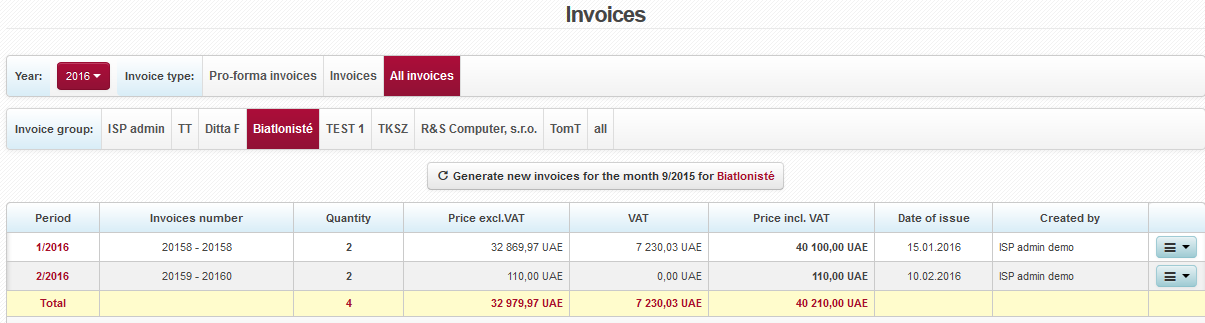
This tab serves as a place where you can generate new invoices for supplied services, work with already issued invoices, print them out and export them to accounting programs.
Bulk generation of new invoices
By clicking on Generate new invoices for the month ... for ..., you can bulk generate invoices for supplied services. If you have set up only one invoice group, you immediately get the option of generating new invoices for the current invoicing period. If you have set up more than one invoice group, it is first necessary to choose a concrete invoice group. Afterwards, you can see its description along with the option of generating invoices for this group.
Before you confirm that you want to generate invoices, enter the following details:
- Opening invoice number / SS, or Opening VS: By this number you set a numerical series for a given invoice group. If you enter 2016000001 as the opening number of a series, then this number is assigned to the first invoice. Whenever a new invoice is issued, its number is the number of the last invoice increased by 1. The system always offers the highest invoice number in a given invoice group. Each invoice group has its own numerical series. No two groups has the same one. The maximum recommended length of an invoice number is 10 characters. This recommendation stems from the fact that banks and business applications usually expect that the variable or specific symbol on an invoice has a maximum of 10 characters. More about invoice numbering can be found on the following pages: How to set invoice numbering and Change of numerical series for invoicing.
- Issue date: The date that will appear on an invoice as Issue date. Default: the first day of the month for which invoices are issued.
- Taxable date: The date that will appear on an invoice as Taxable date. Default: the first day of the month for which invoices are issued.
Once invoice generation is successfully completed, the system automatically offers the next month. However, if you need, for some reason, to generate invoices for a different month, you can change the setting in InvoicingSettingsInvoice group. When editing a given invoice group, modify the Accounting period item.
An overview of issued invoices
Apart from the invoice generation option, this page also provides an overview of invoices issued for individual invoicing periods. You can choose which year and which type of invoices is to be displayed (Invoices, Proform invoices, All invoices). More about proforma invoices here.
| Period | Individual invoicing periods (individual months) |
|---|---|
| Invoices number | The range of invoice numbers in a given invoicing period |
| Quantity |
The number of invoices issued in a given invoicing period |
| Price excl. VAT | The sum of all amounts on invoices issued, excluding VAT |
| VAT | The sum of all VAT amounts on invoices issued |
| Price incl. VAT | The sum of all amounts on invoices issued, including VAT |
| Date of issue | The date when given invoices were generated |
| Created by | The name of the user that generated given invoices |
What you can do with issued invoices
General
Once invoices have been issued, you can do a number of things with them. After clicking on , you have the following options:
| Display invoices | Show given invoices in PDF In addition, you can choose that you want to show only invoices with a specific payment type. |
|---|---|
| Print out invoices | Print out given invoices In addition, you can choose that you want to print out only invoices with a specific payment type. |
| Display invoices sent by post |
Show only those invoices that will be sent by post. Each invoice is on a separate list. The number of pages = the number of invoices issued. If any of the clients pays by postal money order, the invoices will be issued in a shortened form, because there is a template of a postal money order to fill in at the bottom of the sheet of paper. This item is displayed only if at least one client makes use of the Send invoices by post option. |
| Print out invoices sent by post | Print out only those invoices that will be sent by post. Invoices are printed onto the original sheets of paper supplied by Czech Post that include a detachable postal money order - type A. Only plain text will be printed onto the section containing the postal money order. Such a postal money order can be used to make a payment at any of the branches of Czech Post. This item is displayed only if at least one client makes use of the Send invoices by post option. |
| Send invoices by e-mail | Send given invoices by email If a client has the Send invoices by post option activated, or has no email address in the system, or has the Send invoices by email option deactivated, then the system will sent this email to the email address set in the billing_mail key in Invoicing Settings General. |
| Mark invoice as sent | Mark given invoices as sent |
| Export invoices | Export given invoices to the chosen format (to be used with accounting programs) This item is displayed only if you have activated invoice export, see below. |
| Generate file for Direct debit payment | Generate a file for direct debit payments |
| Generate SEPA file | Generate a SEPA file - only for those clients with SEPA payment type. This item is displayed only if there is at least one invoice with SEPA payment type in a given month. |
| Lock invoice | Lock given invoices If invoices are locked, it is not possible to edit or cancel them, change the date or address on them, or issue a new invoice in a given invoicing period. Invoice can be locked and unlocked only by MasterAdmin or Main accountant. |
| Delete invoices | Delete given invoices |
The sending of invoices
- Mark invoice as sent
- Send each invoice
- Send not sent invoice only
- Use an email template. You can create email templates in SettingsOtherE-mail templates.
- Enter the subject of an email
- Enter the body of an email into the editor
- Send SMS
- Use an SMS template. You can create SMS templates in SettingsOtherSMS templates.
- Enter the text of an SMS message
Invoice export to accounting programs
- whether given invoices are to be marked as exported
- whether all invoices are to be exported
- whether only those that have not so far been exported are to be exported
- export type