

Contacts
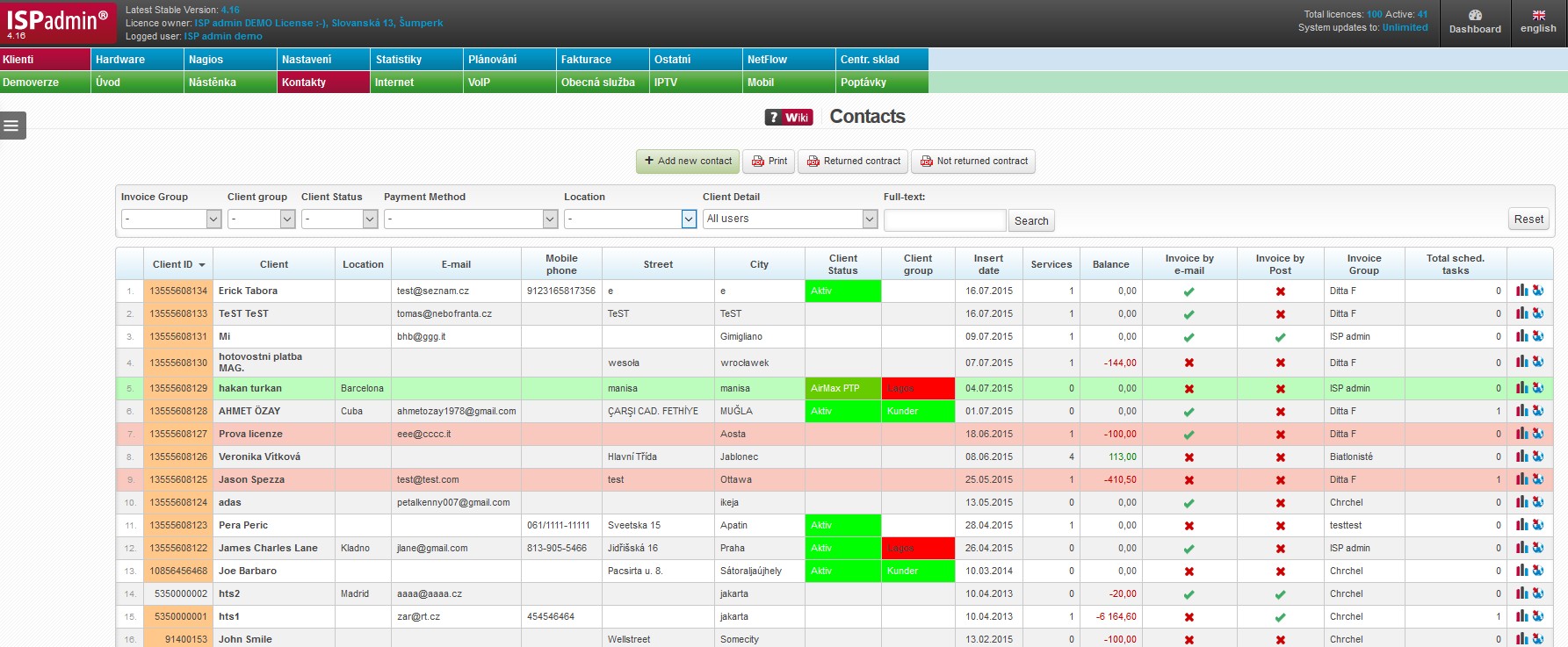
Clients registered in the system, including those without currently assigned active service (e.g. people waiting for new connection, disconnected clients etc.). A contact becomes an active client when assigned a certain active service. Only then his settings is written on connection points, rules are processed and service invoicing initiated.
| + Add new contact | Displays a new tab for adding a new contact. |
 Print Print |
Prints a list of all contacts and their active service into a pdf file. The file can be viewed before printing, and them easily printed out. |
| Returned contract |
Returned contract Exports a list of all contacts with returned contract into a pdf file. The file can be viewed before printing, and them easily printed out. |
| Not returned contract |
Not returned contract Exports a list of all contacts with unreturned contract into a pdf file. The file can be viewed before printing, and them easily printed out. |
Filter
Client list may be filtered by displayed criteria.
Fulltext search does not work in all fields due to server load. It only works in the important ones (e.g. name, street, city, Postcode code, company, phone number, client number, variable symbols, internal note etc.).
 You may define a minimum number of characters to be entered by an administrator for a search to work. Define the limit for each administrator in Settings Administrators Administrators, parameter Limited clients´ search.
| Reset | Resets the filter to display all entries. |
Columns
 |
Click on this icon to open a menu, in which you can check columns to be displayed (Table settings), columns to be printed (Print settings), and Search settings. Then press Save and
All entries can be sorted by every displayed column. Click on column name to display the list by the requested column. Click once to sort in ascending order, twice for descending order. |
 . Display configuration is saved for each administrator separately.
Columns When you hover over client´s name, a basic window with details of a client account is displayed.
Click on client´s name to display Client card.
Highlighted lines
For better orientation in displayed contacts, the following lines are highlighted
Marked clients (see Add new/Edit current contact),
Clients with one suspended service at least.
| ID |
System ID from the database. This is important for imports from old databases into ISPadmin. |
|---|---|
| Client number |
Client´s number is stored in the database. It is a unique identifier which is further used in the system, hence its uniqueness. Client number is further used as variable symbol for invoices, and also as default login to client portal. If client number is highlighted, client´s contract has not been returned yet. (see Add new/Edit current contact) |
| Client | Client´s first name and surname or company name. We strongly recommend to use Surname First name due to better sorting in case of bigger numbers of clients. |
Main client´s email. |
|
| Invoicing e-mail | Email used for invoices - invoices are sent to clients using their Invoicing email. If no Invoicing email is entered, common e-mail is used. |
| Technical e-mail | Email used for technical info. |
| Business e-mail | Email used for business info. |
| Mobile phone, Phone, Street, City, Postcode | Client´s address and contact information |
| Status | Client´s status. You may sort clients by this status. Examples: Connected, Disconnected, Restricted, Normal, Gamer, Downloader, Spammer, Dodger. Set status in Settings Code lists Clients Client status |
| Group | Each client can belong to a group. Examples: Company Employees, VIP etc. Set groups in Settings Code lists Clients Client groups |
| Entry date | Date when client was entered to the system. |
| Services | Number of currently used active services assigned to client in Client card in Active services. |
| Balance | Actual balance of client´s account. Positive number means an overpayment, and negative one is a debt. |
| Send invoice by e-mail | Set invoicing method for each client in Client card
|
| Send invoice by post | Set invoicing method for each client in Client card
|
| Invoice group | Invoicing Settings Invoice group Each client belongs to a certain invoice group which represents provider´s company. If you are one company, one invoice group is sufficient. Some ISP´s compose of more companies, hence more invoice groups for each company. Each invoice group has its own logo and stamp for invoices. Also, all data such as numerical series, invoicing, statistics or clients are kept separately. Each invoice group must have its own numerical series. |
| Total scheduled tasks | Number of scheduled tasks done for the given client. Hover over the number to display a list of scheduled tasks. |
 Show Internet statistics Show Internet statistics |
Client card with Internet statistics is displayed. |
 Show on map Show on map |
Click on |
 Client receives invoices by email.
 Client does not receive invoices by email.