

Map
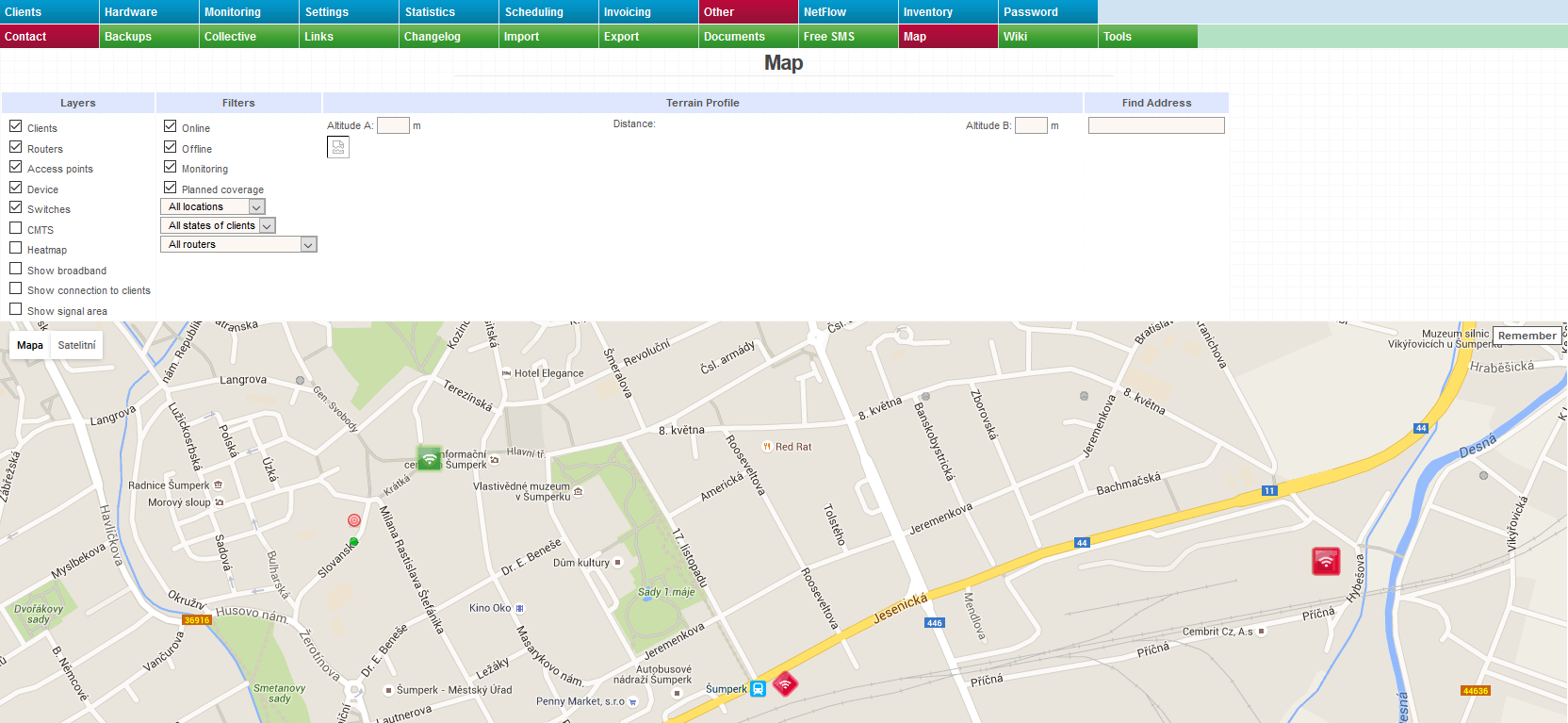
This page contains a map with additional features. You can make use of various layers, several filters, the terrain profile function and the search function.
Features
- You can view the locations of clients, routers, access points, devices, switches and CMTS on a high-quality map (standard, satellite, hybrid and terrain).
- You can visually monitor the status of your network directly on the map.
- You can have the system measure the visibility range and the distance between two points and you can also have it display the elevation profile between these two points.
- You can have the system display signal coverage provided by already installed antennas or planned antennas.
- You can have the system display signal coverage with the help of a heat map.
- You can view links between devices and clients.
- You can filter by location, status or router.
- You can quickly search for a specific address.
Available layers
- Clients
- Routers
- Access points
- Device
- Switches
- CMTS
- Heatmap
- Backbone links
- Links to clients
- Signal coverage
Check all the layers that you want to be displayed on the map. You can check any number of them.
Bear in mind that only clients, routers and other devices that have their coordinates in the system can be displayed on the map.
Backbone links – according to the configuration of the Superior device for Nagios item in the hardware settings
Links to clients – according to the Internet service configuration
Signal coverage – show signal coverage
Available filters
- Online
- Offline
- Monitoring
- Planned coverage
- Locality
- Client status
- Router
- Access point
Choose the filters that you want to apply to the map. Again, you can select any number of them.
Online - Show clients, routers and other devices that are online (green icons).
Offline - Show clients, routers and other devices that are offline (red icons).
Monitoring - Show clients that are in monitoring mode.
Planned coverage - Show planned coverage.
Location - Filter based on location.
Client status - Filter based on client status.
Router - Filter based on router.
Access point - Filter based on access point. This filter can only be used after you have selected a particular router.
Terrain profile and visibility and distance measurement
The system can display the elevation profile (terrain profile) and the distance between two specific points on the map.
Choose a starting point by a double-click and an end point by another double-click. The elevation profile between these two points (x-axis: distance, y-axis: elevation) will then be displayed in the upper part of the page.
The points can be moved anywhere you want.
The elevation may also be manually edited.
Address search
Enter an address into the field in the Find Address section. The corresponding place will be automatically shown on the map. This address is marked as Point A. You can add Point B by a double-click on the map. The terrain profile between the two points is then displayed.
What you can do with the map
You can change the type of map used in the upper-left corner.
In the lower-right corner, you may zoon in / out as well as switch to the Street View mode.
You can zoom in / zoom out using the mouse wheel too.
You can move the map using the keyboard arrows or by a drag and drop gesture.
There are various icons on the map. When you click on one of those, an info bubble will appear with all the basic information about a given element. When you click on the Open link, you will be taken to a page with more details.
Google Maps setup
More about Google Maps setup here.