×

Warning

JUser: :_load: Unable to load user with ID: 43

JUser: :_load: Unable to load user with ID: 40

Invoice Groups


Invoicing Settings Invoice group

Each client belongs to a certain invoice group which represents provider´s company. If you are one company, one invoice group is sufficient. Some ISP´s compose of more companies, hence more invoice groups for each company. Each invoice group has its own logo and stamp for invoices. Also, all data such as numerical series, invoicing, statistics or clients are kept separately. Each invoice group must have its own numerical series.


Invoice group set-up


Name The internal name of a given invoice group
Hide invoicing group Hide/Do not hide an invoice group
Currency The currency used. Enter the currency code (according to the ISO 4217 standard - e.g. CZK, EUR, USD).
Accounting period Current accounting period
VAT VAT payer/non-payer 
Accounting Tax evidence / accounting 
Civic association

The company is / is not a civic association. If you check this box, the following modifications will be made to the texts on an invoice:


  • INVOICE - TAX DOCUMENT --> INVOICE
  • Client ID --> Member ID
  • Supplier --> Name of organization
  • Subscriber --> Member
Hide a superCASH code on an invoice Hide/Do not hide a superCASH code on an invoice. 


Logo / Stamp


Overpayments

More about overpayment inclusion here

More about overpayment refunds here.


PayPal

By checking this box, you activate PayPal payments for a given invoice group. You also need to enter a PayPal ID. More about how to set up PayPal here


Invoicing information - export

icon info2 You can use system variables. More about invoice export here.

Export invoices to POHODA excl. Clients list Fill in the following: Description
Export invoices to POHODA incl. Clients list Fill in the following: Description
MONEY S3

Fill in the following: Export - Accounting codes, Export to accounting, Export - account center, Description, Export of numerical series prefix, Export VAT code, Export of cashdesk abbreviation, Export - Accounting codes, Export - account center, Export VAT dividing, Export of numerical series prefix

Export MRP/KS Fill in the following: Export - Accounting codes a Export VAT code
Export invoices to MK-soft Fill in the following: Export - Accounting codes
EKONOM Fill in the following: Export of numerical series prefix
KASTNER - stereo Fill in the following: Export of numerical series prefix
Abra G3  


Invoicing information


Company The company represented by a given invoice group The company name entered here has to be the same as the one in the trade licence.
Company Company name
Street Place of business - address   
City
Postcode
Country
Phone Phone number
Fax Fax number
E-mail This email address will be displayed as the sender of invoice emails. Example: invoicing@domain.com 
E-mail Description for sending

The description that will be displayed instead of the sender’s email address in an invoice email Example: XY Company - Invoicing Department

If the E-mail and E-mail Description for sending fields are not filled, the system uses the settings from InvoicingSettingsGeneral (the billing_mail and billing_mail_name keys).

WWW pages The website of your company
Invoice from date Who made invoice The name is included on an invoice 
ID Company ID
VAT ID Company tax ID
Account number Company bank account number If you want the system to handle more than one bank account, add another invoice group. 
Bank Bank name
IBAN International Bank Account Number You can generate an IBAN from the bank account number you entered in the Account number field by clicking on Calculate
BIC Bank Identifier Code (SWIFT address) helps to uniquely identify the recipient’s bank. 
Number for bulk payments The number for bulk payments assigned to you by the postal service
Creditor ID (SEPA) Creditor ID (SEPA)
Postscript at Invoice This appendix contains the text (including system variables) that is added to the footer of every generated invoice. Frequently used appendices:


  • Access details to the Client portal: You may also view all your invoices in electronic form in the Client portal. Your registration data:
    • Username: $USERNAME$
    • Password: $PASSWORD$
  • Information about company registration: Pursuant to the Act No. 235/2004 Coll., on VAT, §26, this electronic tax document is absolutely legally permissible. The company is registered in the Commercial Register maintained by the Municipal Court in Prague, Section A, Insert 1234.
  • Details for setting up a standing order:
    • The recipient’s bank account number 1234567890/9876
    • Due: on the 1st day of the month (or the quarter in the case of quarterly payments)
    • Variable symbol: $KLIENT_NUMBER$
    • Amount payable: see TOTAL AMOUNT


If you click on List of system variables, a list of all variables in the following categories will appear: Client, Internet, VoIP, Reminders etc. You can use all these variables when creating contract templates.


Proforma invoice

More about proforma invoices here.

Issue a proforma invoice Issue / Do not issue a proforma invoice When this function is activated, proforma invoices will be issued to all the clients in a given invoice group.
Name for proforma payments (Notice of payment) Here you can set the title for proforma invoices. On classic invoices, the title “Invoice” is used, while on proforma invoices, the titles “Notice of payment” or “Proforma invoice” are most frequently used.
Addition on proforma invoice The appendix that is added to a proforma invoice It is possible to use a different appendix for a proforma invoice and a different invoice for a final invoice.


  • A template of a proforma invoice appendix : The tax document will be sent to your email address $EMAIL$ in PDF format once we have received your payment. The invoice in question is considered to be settled only if the full price has been paid.


If you click on List of system variables, a list will appear of all the variables that you can use.


Payment calendar

More about payment calendar here.

Stamp - left margin The distance of the stamp from the left edge of the page in mm
Stamp - top margin The distance of the stamp from the top edge of the page in mm
Text on payment schedule The text that appears on a payment schedule If you click on List of system variables, a list will appear of all the variables that you can use.


Invoicing Invoice group
 
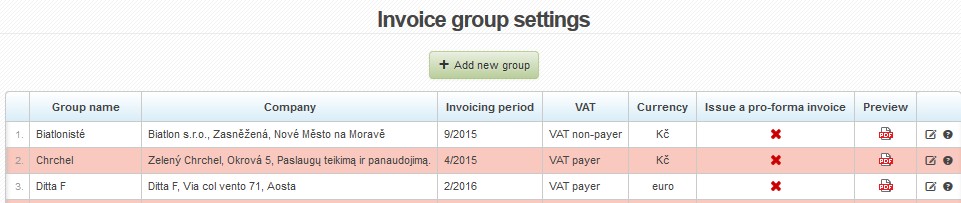
The following information is available in the overview
  • Group name: the internal name of a given group
  • Company: the company represented by a given invoice group
  • Invoicing period: the current invoicing period for which invoices are generated
  • VAT: VAT payer or non-payer
  • The currency used for a given invoice group
 

icon check ok

icon check ko

Issue a proforma invoice

Do not issue a proforma invoice

icon pdf1 Show a preview of an invoice for a given invoice group in PDF format
icon edit Edit an invoice group
icon delete btsp Delete an invoice group (if there are any clients in a given invoice group, it is first necessary to transfer them to another group or delete them).

Adding/Editing invoice group


Invoice group set-up


Name The internal name of a given invoice group
Hide invoicing group Hide/Do not hide an invoice group
Currency The currency used. Enter the currency code (according to the ISO 4217 standard - e.g. CZK, EUR, USD).
Accounting period Current accounting period
VAT VAT payer/non-payer 
Accounting Tax evidence / accounting 
Civic association

The company is / is not a civic association. If you check this box, the following modifications will be made to the texts on an invoice:


  • INVOICE - TAX DOCUMENT --> INVOICE
  • Client ID --> Member ID
  • Supplier --> Name of organization
  • Subscriber --> Member
Hide a superCASH code on an invoice Hide/Do not hide a superCASH code on an invoice. 


Logo / Stamp


Overpayments

More about overpayment inclusion here

More about overpayment refunds here.


PayPal

By checking this box, you activate PayPal payments for a given invoice group. You also need to enter a PayPal ID. More about how to set up PayPal here


Invoicing information - export

icon info2 You can use system variables. More about invoice export here.

Export invoices to POHODA excl. Clients list Fill in the following: Description
Export invoices to POHODA incl. Clients list Fill in the following: Description
MONEY S3

Fill in the following: Export - Accounting codes, Export to accounting, Export - account center, Description, Export of numerical series prefix, Export VAT code, Export of cashdesk abbreviation, Export - Accounting codes, Export - account center, Export VAT dividing, Export of numerical series prefix

Export MRP/KS Fill in the following: Export - Accounting codes a Export VAT code
Export invoices to MK-soft Fill in the following: Export - Accounting codes
EKONOM Fill in the following: Export of numerical series prefix
KASTNER - stereo Fill in the following: Export of numerical series prefix
Abra G3  


Invoicing information


Company The company represented by a given invoice group The company name entered here has to be the same as the one in the trade licence.
Company Company name
Street Place of business - address   
City
Postcode
Country
Phone Phone number
Fax Fax number
E-mail This email address will be displayed as the sender of invoice emails. Example: This email address is being protected from spambots. You need JavaScript enabled to view it. 
E-mail Description for sending

The description that will be displayed instead of the sender’s email address in an invoice email Example: XY Company - Invoicing Department

If the E-mail and E-mail Description for sending fields are not filled, the system uses the settings from InvoicingSettingsGeneral (the billing_mail and billing_mail_name keys).

WWW pages The website of your company
Invoice from date Who made invoice The name is included on an invoice 
ID Company ID
VAT ID Company tax ID
Account number Company bank account number If you want the system to handle more than one bank account, add another invoice group. 
Bank Bank name
IBAN International Bank Account Number You can generate an IBAN from the bank account number you entered in the Account number field by clicking on Calculate
BIC Bank Identifier Code (SWIFT address) helps to uniquely identify the recipient’s bank. 
Number for bulk payments The number for bulk payments assigned to you by the postal service
Creditor ID (SEPA) Creditor ID (SEPA)
Postscript at Invoice This appendix contains the text (including system variables) that is added to the footer of every generated invoice. Frequently used appendices:


  • Access details to the Client portal: You may also view all your invoices in electronic form in the Client portal. Your registration data:
    • Username: $USERNAME$
    • Password: $PASSWORD$
  • Information about company registration: Pursuant to the Act No. 235/2004 Coll., on VAT, §26, this electronic tax document is absolutely legally permissible. The company is registered in the Commercial Register maintained by the Municipal Court in Prague, Section A, Insert 1234.
  • Details for setting up a standing order:
    • The recipient’s bank account number 1234567890/9876
    • Due: on the 1st day of the month (or the quarter in the case of quarterly payments)
    • Variable symbol: $KLIENT_NUMBER$
    • Amount payable: see TOTAL AMOUNT


If you click on List of system variables, a list of all variables in the following categories will appear: Client, Internet, VoIP, Reminders etc. You can use all these variables when creating contract templates.


Proforma invoice

More about proforma invoices here.

Issue a proforma invoice Issue / Do not issue a proforma invoice When this function is activated, proforma invoices will be issued to all the clients in a given invoice group.
Name for proforma payments (Notice of payment) Here you can set the title for proforma invoices. On classic invoices, the title “Invoice” is used, while on proforma invoices, the titles “Notice of payment” or “Proforma invoice” are most frequently used.
Addition on proforma invoice The appendix that is added to a proforma invoice It is possible to use a different appendix for a proforma invoice and a different invoice for a final invoice.


  • A template of a proforma invoice appendix : The tax document will be sent to your email address $EMAIL$ in PDF format once we have received your payment. The invoice in question is considered to be settled only if the full price has been paid.


If you click on List of system variables, a list will appear of all the variables that you can use.


Payment calendar

More about payment calendar here.

Stamp - left margin The distance of the stamp from the left edge of the page in mm
Stamp - top margin The distance of the stamp from the top edge of the page in mm
Text on payment schedule The text that appears on a payment schedule If you click on List of system variables, a list will appear of all the variables that you can use.


System back-ups

ISPadmin has an automatic data back-up functionality. It is possible to store...

MySQL database

Restart of MySQL service /etc/init.d/mysqld restart Recovery of database...

ISPadmin update

Switch to new system version using the following command from command line (logi...

Postfix mail server

By default, the SMTP server is configured in the way that it is only possible...

System Variables

System variables are used for replacing items such as client's name, address,...

System migration

The information contained in this manual pertains to the migration of ISPadmin ...

Emails cannot be sent because of their size

Check and modify the settings of the following parameters: upload_max_f...

Ramdisk and RRD backup-data restoration

More on RAM disk here (index.php?option=com_content view=article id=508:4-11-bet...

HTTPS Certificates

These are instructions on how to create and set up trustworthy certificates (h...

Crashed table repair

these instructions (index.php?option=com_content view=article id=1284:system-bac...

Moving graphs to RAMDISK

The main usage load for disks, on which the system is installed on, is the gener...

Forgotten root password

You can try two ways: First procedure 1. Insert installation DVD of ISPa...

Text editors

Nano text editor is always used in this documentation. If you don’t...

Linux update

For reasons of compatibility and availability of future versions of ISPadmin,...

ISPadmin serving as SMTP server

By default, the SMTP server is configured in the way that it is only possible to...

Cache-only DNS server

Caching-only is ready after installation of ISPadmin. It is sufficient to use IP...

Technical support status cannot be verified

If technical support cannot be verified, most likely it is due to DNS malfunc...

Administration of running processes

We recommend using htop program for easier monitoring of running process inst...

Timezone settings

"Europe/Prague” timezone is set by default. To change it, do the following:...

IPv6

ISPadmin does not currently support IPv6, it only supports IPv4. It is, of cours...

Configuration / update of IP Address

A) Temporary setting of IP address (until next Linux restart).Just add the fo...

High CPU load of ISPadmin server

Run htop command from the Linux console to determine the problems. With this ...

ISPadmin operation behind NAT

If you have your ISPadmin located on private network and wish to access it from ...

Manual update

If the Error 404: Not Found message appears during an update, it will be necessa...

Inner/outer address on ISPadmin server

The system is typically connected to the network by one network card only. Both ...

Running service check

If you need to find out if a certain process is running use the following comman...

Error "Allowed memory size of ... bytes exhausted ..."

Fatal error: Allowed memory size of ... bytes exhausted (tried to allocate ... b...

What is the directory structure in /usr/local/script/ispadmin/rrd_data?

headend ipaccount modem routers snmp switches user_devices wifi

«
»

CONTACT

NET service solution, s.r.o.
Žerotínova 3056/81a
787 01 Šumperk
Czech Republic